AI Object Remover
Runs in your browserErase unwanted objects, people, or distractions from any photo. AI fills in the background. Three masking modes: brush, class picker, and click-to-select. 100% browser-based — nothing uploaded.
What you can remove
Paint over anything unwanted and let AI reconstruct the background. Here is what people erase most often:
People & crowds
Remove tourists from vacation shots, photobombers from portraits, or entire crowds from architecture photos.
Power lines & signs
Clean up landscape and cityscape photos by removing distracting wires, poles, and street signs.
Watermarks & logos
Erase watermarks, brand logos, and copyright overlays from your own images to get a clean canvas.
Blemishes & spots
Touch up skin imperfections, dust spots on scanned photos, or small scratches on restored images.
Text & captions
Remove subtitles from screenshots, captions from memes, or unwanted text overlays from images.
Any unwanted object
Cars in the background, trash on the street, or anything else that distracts from your subject.
Three ways to mask
Choose the masking mode that fits your image. Brush for freehand, class picker for auto-detection, or click-to-select for precision.
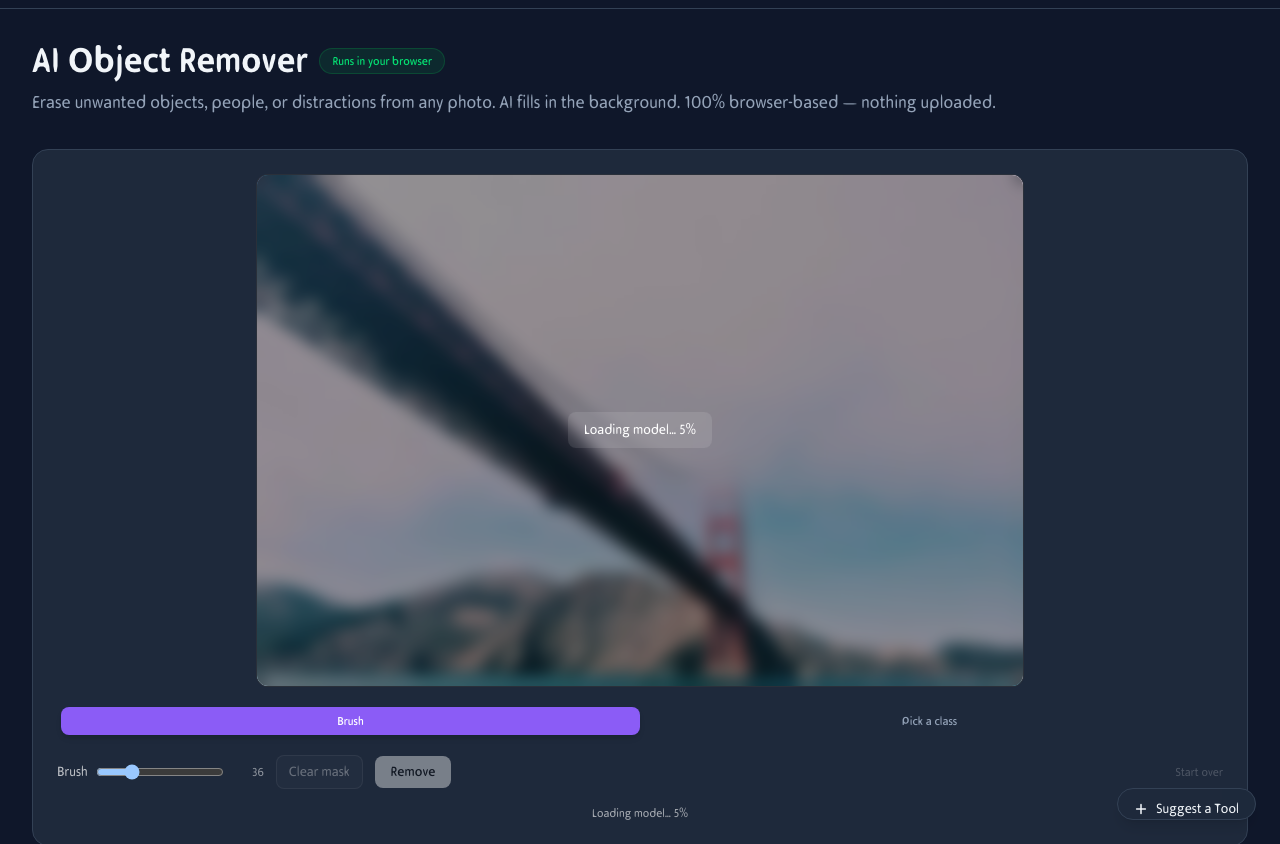
Brush mode lets you paint freely over anything you want removed. The class picker and click-to-select tabs offer auto-detection options.
See it in action
Upload a photo, brush over the object you want gone, and click Remove. The AI reconstructs the background from the surrounding pixels.

Paint over the object in red (the mask), then click Remove. The AI fills the gap with plausible background in about 250ms.
Brush mode
Paint freely with an adjustable brush. Perfect for irregular shapes and precise control over what gets removed.
Pick a class
Auto-detect selfie parts (hair, face, body) or scene objects (sky, ground, person) using MediaPipe and DeepLabV3.
Click to select
SAM 3 Tracker lets you click any object to select it. Shift-click adds exclusion points for precise control.
How LaMa inpainting works
LaMa uses Fourier convolutions to understand the structure of your image. It processes at 512×512, then re-composites the result back into your original resolution. The mask is dilated by 2 pixels before processing to ensure clean edges.
WebGPU acceleration
On supported devices, inference takes about 250ms after an initial 900ms warmup. WebAssembly fallback is available for older devices.
Multi-pass refinement
Each removal operates on the previous result. Paint over leftovers and click Remove again — iterate until the image is clean.
Works on your phone
The class picker and click-to-select modes work great on touchscreens. Upload a photo, tap the object you want gone, and download the cleaned result.
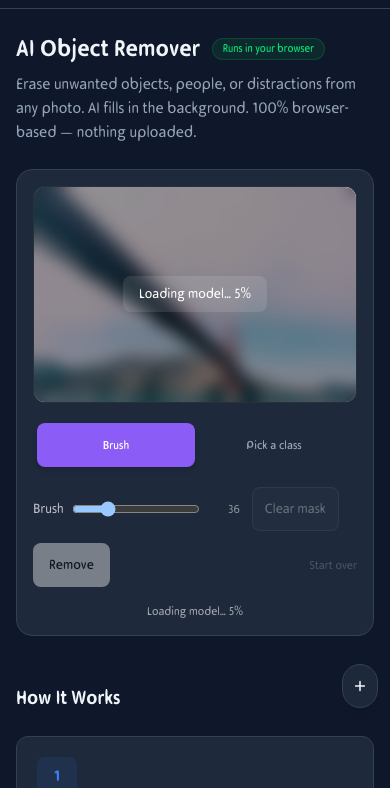
Object removal on mobile. Upload, mask, and remove — all from your phone.
How It Works
Upload a photo
Drag and drop or click to choose. JPG, PNG, or WebP — up to about 20 MB.
Mark what you want gone
Use brush mode, pick a class (selfie parts or scene objects), or click to select with SAM 3. The masked area highlights in red.
Click Remove
LaMa inpainting fills the gap with plausible background. Iterate until clean, then download the result.
Frequently Asked Questions
How does this work?
We run a neural inpainting model called LaMa right inside your browser, accelerated by WebGPU when available. It looks at the unmasked part of your photo and predicts what would be behind the painted area.
Is my image uploaded?
No. The model and your image both stay in the browser tab. Nothing is sent to a server.
What are the three masking modes?
Brush mode lets you paint freely. Pick a class auto-detects selfie parts (hair, face, body) or scene objects (sky, ground, person) using MediaPipe and DeepLabV3. Click-to-select uses SAM 3 — click an object to select it, shift-click to exclude nearby items.
Why does the first run take longer?
The AI model is about 200 MB and downloads on first use, then is cached. After that, each removal takes about a quarter-second on a recent GPU-equipped device.
What if a single pass leaves artifacts?
Just paint over the leftover spot and click Remove again. Each pass operates on the result of the previous one, so you can iterate.
What's the maximum image size?
Inputs up to about 20 MB are accepted. Internally the AI works at 512×512 and we re-composite back into your original-resolution image, so very large photos will show some softness in the touched-up area.
Can I remove multiple objects at once?
Yes. Paint or select multiple areas before clicking Remove, or process them one at a time — each removal builds on the previous result.
Does it work on text and watermarks?
Yes. Paint over text, logos, or watermarks and the AI will attempt to reconstruct the underlying background. Clean backgrounds work better than busy ones.
What output format do I get?
The result is a PNG image at your original resolution. The touched-up area is blended back into the original photo seamlessly.
Does it work on mobile?
Yes, but the brush-based workflow is easier with a mouse or stylus. The class picker and click-to-select modes work well on touchscreens.