Free AI Image Generator
Server-poweredTurn text prompts into images using FLUX AI. Choose from 17 art styles and 8 photorealistic camera presets, or let the AI inspire a prompt for you. No signup needed.
What you can create
The tool is built around FLUX, which handles text rendering, detailed scenes, and realistic lighting better than most open-source models. Here is what people use it for:
Wallpapers & backgrounds
Landscapes, abstract gradients, cityscapes at night. Use 16:9 for desktop or 9:16 for phone lock screens.
Product mockups
Generate clean studio shots for packaging, apparel, or gadgets. Then send straight to the Product Ad Video tool.
Concept art & illustrations
Character designs, environment sketches, book covers. The Illustration and Concept Art style chips add the right visual language.
Profile & avatar images
Use the Portrait camera preset for a headshot look, or Anime / 3D Render for something stylized.
Social media content
Instagram carousels, Twitter headers, Pinterest pins. Pick the exact aspect ratio so there is no awkward cropping later.
Stylized portraits
Oil painting, watercolor, pixel art, or comic book looks. The style chips rewrite your prompt with the right art vocabulary.
17 built-in art styles
Instead of manually typing "oil painting, thick impasto, warm tones" every time, click a style chip and the AI rewrites your prompt with the correct visual language. You can also stack a style on top of a camera preset for hybrid looks — like a watercolor shot on a Leica.

The style chips sit right under the prompt field. They become active as soon as you start typing.
Photorealistic camera presets
The Photorealistic button opens a modal with 8 real camera setups. Each one names an actual camera body, lens, aperture, and lighting setup — then injects those details into your prompt so FLUX renders a believable photo instead of a generic digital image.

From left to right: Portrait (Sony A7R V + 85mm), Cinema Still (ARRI Alexa + anamorphic), 35mm Film (Canon AE-1 + Portra 400), Landscape (Nikon Z7 II + 24mm), Street (Leica Q3), Medium Format (Hasselblad X2D), Macro (Canon EOS R5 + 100mm), and Wildlife (Canon EOS R3 + 600mm).
Image to Image transformation
Switch to the Image to Image tab to upload a photo and restyle it. The strength slider controls how much the AI is allowed to deviate — low values keep the composition and colors close to the original, high values produce something completely new.

Upload a reference image, adjust the strength slider, and type what you want changed. The AI uses your image as the structural base.
Works great on your phone
The entire tool is responsive. Type prompts, pick styles, generate images, and download results — all from your phone. No app install needed.
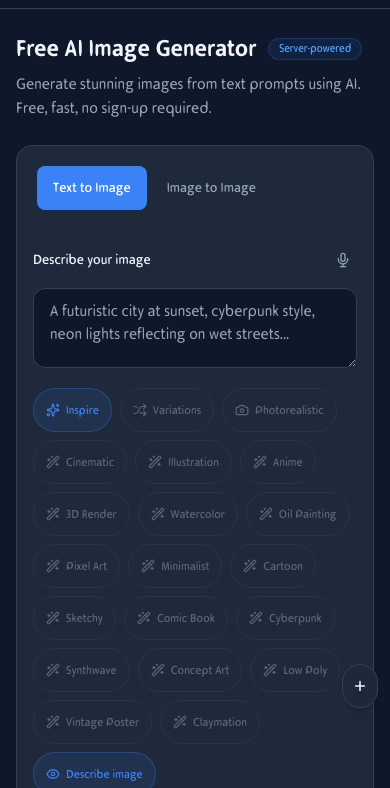
Full tool interface on mobile. All 17 style chips are accessible by scrolling.

Type your prompt and tap any style chip. The chips become active as soon as you start typing.

Generated image appears below the tool. Tap Download to save the PNG directly to your photos.
Prompt examples & results
Here is what different prompts produce. The same description with a different style chip gives completely different output — try it yourself.
“A red fox sitting in snow, backlight from a low winter sun”
No style chip selected — FLUX renders a believable wildlife photograph with natural fur detail, snow texture, and golden rim light.

“A red fox sitting in snow, backlight from a low winter sun”
With the Anime style chip active, FLUX switches to cel-shaded rendering, large expressive eyes, and a soft pastel background.

More prompts to try
Cyberpunk city
“Cyberpunk portrait of a woman with neon blue hair, glowing circuit tattoos, rain-soaked Tokyo streets at night”
Mountain landscape
“Serene mountain lake at sunrise, snow-capped peaks reflected in still water, pine forest, golden morning light”
Food flat lay
“Flat lay of a rustic wooden table with ceramic coffee cup, fresh croissant, old leather notebook, soft window light”
Fantasy castle
“A majestic fantasy castle floating on clouds, waterfalls cascading from edges, dragons circling towers, golden sunset”
Watercolor pet
“Fluffy orange tabby cat sleeping on a windowsill, sunlight through curtains, potted plants, soft watercolor style”
Anime character
“Young adventurer girl with glowing crystal staff, ancient forest edge, magical particles, vibrant anime style”
Prompt tips that actually help
FLUX is good at understanding natural language, but a few patterns make the difference between a usable image and a great one.
- Be specific about the subject. "A red fox" is better than "an animal." "A red fox sitting in snow, backlight from a low winter sun" is better still.
- Describe the light. Words like golden hour, overcast, neon reflections, or single candle light give the model concrete visual information.
- Use the style chips instead of typing styles.The AI rewrites your prompt with more precise art vocabulary than most people know offhand.
- Try the camera presets for photorealism. Saying "shot on Sony A7R V with 85mm f/1.4" produces a different depth of field and color response than just "photorealistic."
- Use variations when stuck. If the first result is close but not quite right, generate variations and pick the direction you like. You can always refine from there.
How It Works
Type or Inspire
Describe the image you want, or hit Inspire to get a random creative prompt generated by AI.
Pick a Style or Camera
Add a cinematic look, watercolor feel, or photorealistic camera setup. Switch aspect ratio anytime.
Generate & Download
Images render in seconds. Download as PNG, send to filters, or remove objects — all without leaving the page.
Frequently Asked Questions
Is this really free?
Yes. You can generate images without signing up or entering a credit card. There are no watermarks and no usage limits displayed.
What AI model runs under the hood?
We use FLUX 2 Klein 4B by Black Forest Labs, served through a local stable-diffusion.cpp inference engine. For prompt enhancement and style rewriting we run Google's Gemma model directly in your browser via Transformers.js.
Can I use generated images commercially?
Yes. Every image you create is yours to use for personal or commercial projects — social media, ads, merchandise, presentations, whatever you need.
What resolution and aspect ratios are supported?
Default output is 1024×1024. You can also pick 16:9 (768×432), 9:16 (432×768), 4:3 (768×576), 3:4 (576×768), or HD 1:1 (1024×1024). Switch before you generate.
How do the camera presets work?
The Photorealistic button opens a picker with 8 real camera setups — Sony A7R V with an 85mm portrait lens, ARRI Alexa Mini LF for cinema stills, Canon AE-1 with Portra 400 film, and more. Selecting one rewrites your prompt with the exact camera body, lens, aperture, and lighting details that make FLUX produce a believable photo.
What is the Variations button for?
Variations takes your current prompt and produces 4 alternate versions — different moods, angles, lighting, or styles — while keeping the same core subject. Great when you like the idea but want to see options before committing to a final render.
Can I upload my own image and transform it?
Yes. Switch to the Image to Image tab, upload a reference photo, set the strength slider (subtle vs. creative), and type what you want changed. The AI uses your image as a base and applies the prompt on top.
What does the Describe Image button do?
It reverses the process — upload any photo and the AI writes a detailed text-to-image prompt that would recreate it. Useful for learning how prompts work, or for turning a photo into a starting point for variations.
Do generated images have watermarks?
No. The output is a clean PNG with no logo, no text overlay, and no hidden metadata watermark.
Can I edit images after generating them?
Every generated image has one-click buttons to send it to our Background Remover, Object Remover, Image Filters, or Product Ad Video tools. You can also download the raw PNG and edit it in any app you prefer.