Free Online SVG Editor
Runs in your browserA basic-but-powerful vector editor in your browser. Pen, shapes, text, selection, transform, and boolean operations on real SVG paths. Export as SVG or PNG. Built on Paper.js.
A real vector editor in your browser
Pen tool, shapes, text, selection, transform, boolean operations, and layers — everything you need for vector design, right here.
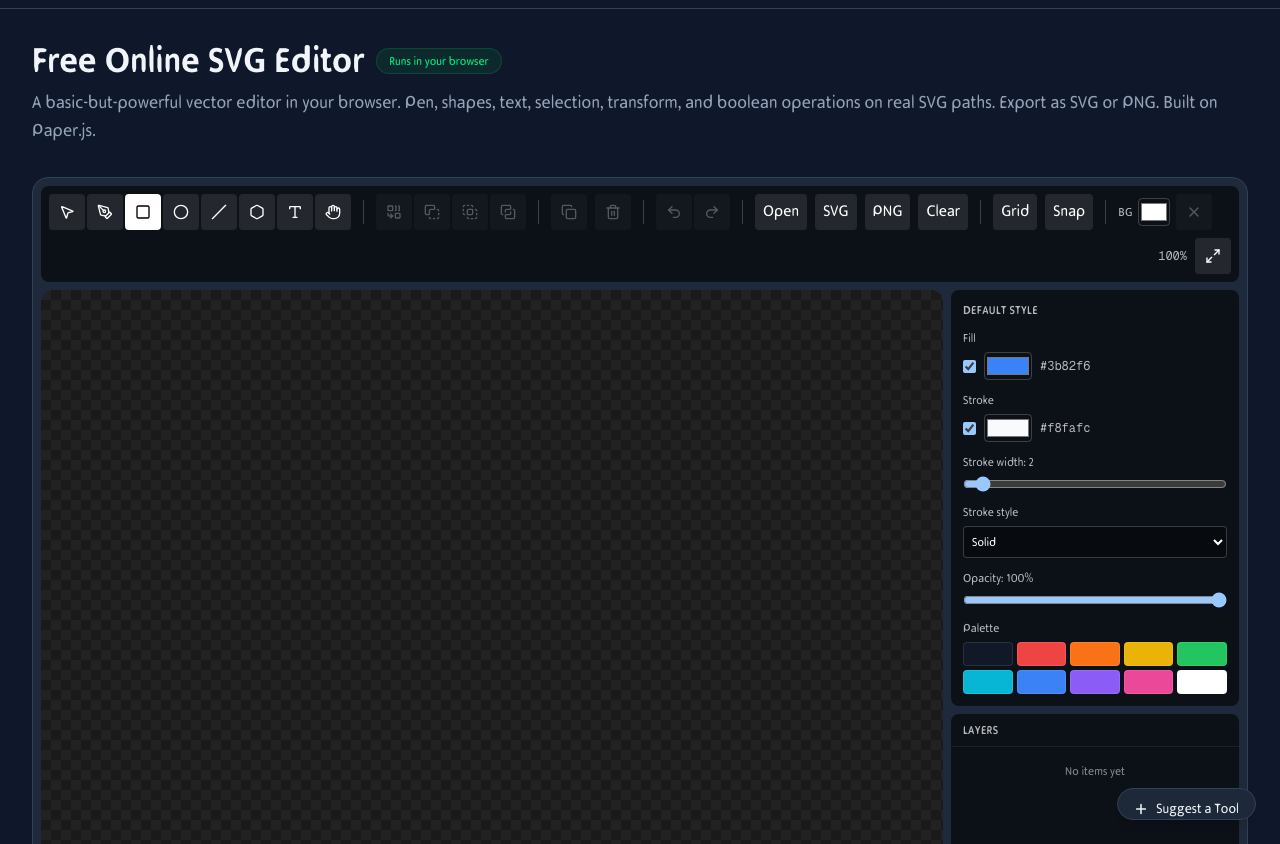
Full SVG editor with pen tool, shape tools, layers panel, and property inspector. Select, transform, and edit every element.
Boolean operations on real paths
Combine shapes like the pros do. Union, subtract, intersect, and exclude — the result is always a clean SVG path.
Union
Merge multiple shapes into one. Overlapping areas become a single unified path.
Subtract
Cut one shape out of another. Perfect for creating holes, notches, and negative space.
Intersect
Keep only the overlapping area of multiple shapes. Great for complex compound forms.
Exclude
Remove overlapping areas while keeping non-overlapping parts. Creates interesting cutout effects.
What you can create
From simple icons to complex illustrations — if you can imagine it, you can draw it with vectors.
Icons & symbols
Design app icons, UI symbols, and system icons that scale perfectly to any screen resolution.
Typography & logos
Combine text and shapes to create wordmarks, monograms, and brand identities.
Diagrams & wireframes
Quick flowcharts, system diagrams, and UI wireframes for pitches and documentation.
Edit SVGs on mobile
Quick edits and touch-based selection work on your phone. For precision work, a stylus or mouse is recommended.
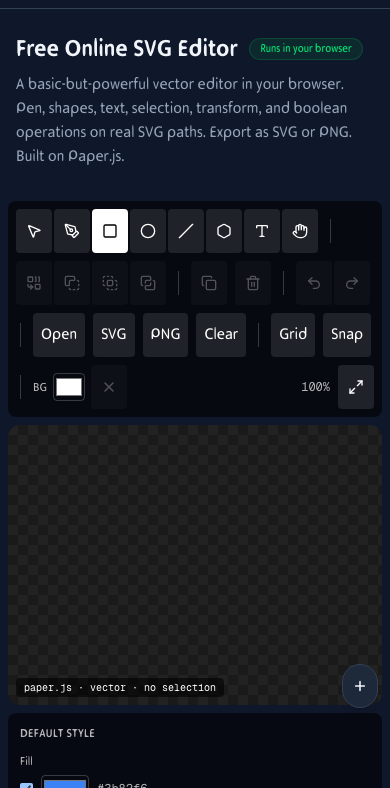
SVG editing on mobile. Touch-based selection and basic shapes.
How It Works
Pick a tool — Select, Pen, Rectangle, Ellipse, Line, Text
Single-letter shortcuts: V select, P pen, R rectangle, O ellipse, L line, T text. Hold Space to pan, scroll to zoom around the cursor.
Combine shapes with boolean ops
Select two or more shapes and hit Union, Subtract, Intersect, or Exclude. The result is a real SVG path, ready to export and reuse anywhere.
Reorder, lock, and hide layers
The layers panel mirrors the canvas. Drag to reorder, eye-icon to hide, lock-icon to protect. Selection is two-way — click in the panel or on the canvas, both stay in sync.
Export as a real SVG (or PNG @2x)
Round-trip through SVG with no lossy intermediate. Open in Illustrator, Inkscape, Figma, or any browser. PNG is rendered from the same SVG so what you see is what you get.
Frequently Asked Questions
How is this different from the Vector Drawing tool?
Vector Drawing is a freehand tool — you draw, it captures the stroke. The SVG Editor is a true editor: select, transform, boolean operations, layers, properties — the things you'd reach for in Illustrator or Figma but tiny and free in your browser.
What library powers this?
Paper.js — the most mature open-source vector engine for the browser. It handles path math, Bezier curves, hit testing, and boolean operations. We added the document model, tools, selection UX, and React shell on top.
Does it really export SVG?
Yes — every shape on the canvas is a real path under the hood. Export is just serialization, no rasterization. The output round-trips through Illustrator, Inkscape, Figma, browsers, and back into this editor.
Why are some operations disabled?
Boolean operations require at least two selected shapes. Duplicate and Delete need a selection. Hold Shift while clicking to multi-select.
Can I import existing SVGs?
Yes — drag and drop any SVG file onto the canvas. Basic shapes, paths, and text are recognized and become editable objects.
Is it free?
Yes. No signup, no watermark, no paid features. Everything runs in your browser.
Does it work on mobile?
Yes, but the precision-oriented workflow is easier with a mouse or stylus. Touch works for basic shapes and selection.
Can I use keyboard shortcuts?
Yes. V = select, P = pen, R = rectangle, O = ellipse, L = line, T = text, Delete = remove selection, D = duplicate, Ctrl/Cmd+Z = undo.