Video Trimmer & Cutter
Runs in your browserTrim the ends, cut out a middle section, or splice multiple keepers into one clip. Split at the playhead, toggle any segment keep/remove, drag cuts to fine-tune — then export. Runs entirely in your browser.
Cut like a pro, in your browser
No need for heavy editing software. Upload, split, toggle, and export — all without leaving your browser. Your video never touches a server.
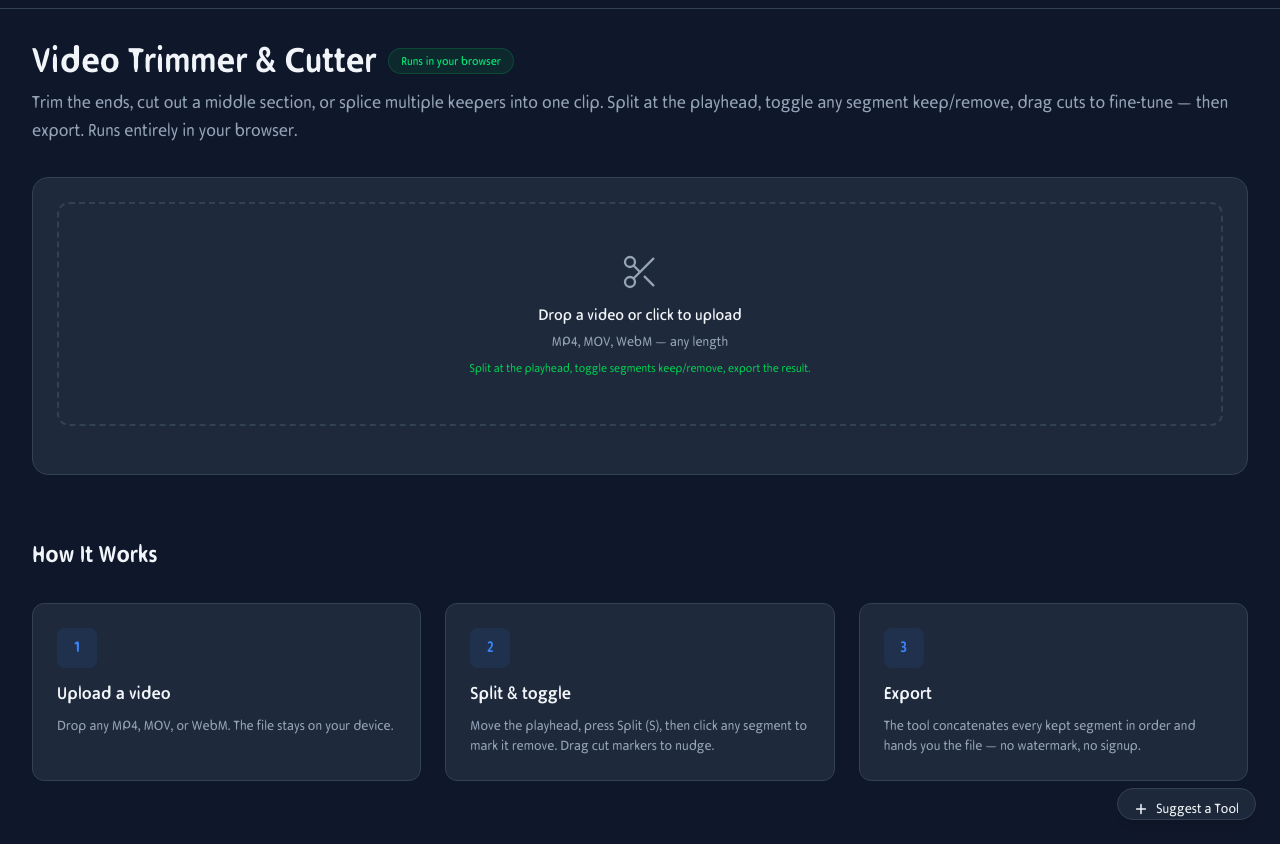
Upload a video, scrub through the timeline, and split at any point. Toggle segments to keep or remove, then export.
More than just trimming ends
Remove awkward pauses, cut out mistakes, or splice the best moments into one tight clip. All with frame-accurate control.
Trim start & end
The classic trim — remove dead air at the beginning and the awkward goodbye at the end.
Cut out mistakes
Split before and after a blooper, mark the middle segment as remove, and it's gone. Seamless join.
Splice highlights
Keep only the best moments from a long recording. The tool concatenates kept segments in order automatically.
Multi-cut editing
Add as many split points as you need. Fine-tune each cut by dragging the marker left or right.
Keyboard shortcuts for speed
Don't reach for the mouse. Use keyboard shortcuts to edit faster than most desktop video apps.
S = Split
Hit S at any moment to create a cut at the playhead position. Fast and precise.
Space = Play/Pause
Standard playback control. Scrub with arrow keys — ← → nudge 0.1s, Shift + ← → nudge 1s.
Click to toggle
Click any segment to toggle keep/remove. Green = kept, red = removed. Visual and intuitive.
Trim videos on your phone
Edit videos from your camera roll. Upload, scrub, split, and export — all from your phone without installing an app.
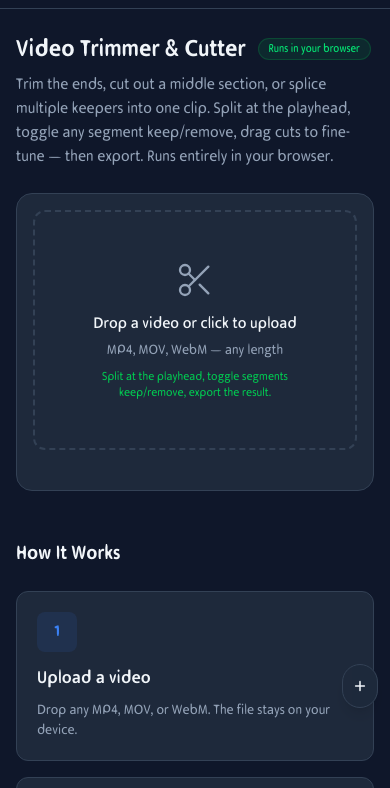
Video trimming on mobile. Upload from camera roll and edit on the go.
How It Works
Upload a video
Drop any MP4, MOV, or WebM. The file stays on your device — nothing is uploaded.
Split & toggle
Move the playhead, press Split (S), then click any segment to mark it remove. Drag cut markers to nudge.
Export
The tool concatenates every kept segment in order and hands you the file — no watermark, no signup.
Frequently Asked Questions
Is this video trimmer really free?
Yes — no signup, no watermark, no upload limit. The whole tool runs in your browser, so there are no server costs to pass on.
Can I cut out multiple parts of a video, not just the ends?
Yes — that's the whole point. Split the video at as many points as you want, then click any segment to mark it as 'remove.' The export concatenates only the kept segments in order.
Where does my video go?
Nowhere. Trimming and export happen entirely on your device using the Canvas, MediaRecorder, and Web Audio APIs. Your file never leaves your browser.
Which video formats are supported?
Any video your browser can decode — typically MP4, MOV, WebM. Output is MP4 (H.264 + AAC) on Safari/iOS and WebM (VP9 or VP8 + Opus) on Chromium and Firefox.
Does it keep the audio?
Yes. Audio is routed through the Web Audio API into the exported file, with a short fade across each cut so there are no clicks or pops.
Why does export take about as long as the video?
The tool re-encodes through MediaRecorder at real time so audio stays perfectly in sync. A 3-minute trim takes roughly 3 minutes to render. For lossless cuts on a single range, a fast mode using WebCodecs is on the roadmap.
Keyboard shortcuts?
S = split at playhead, Space = play/pause, ← / → = nudge 0.1s (hold Shift for 1s).
Does it work on iPhone or iPad?
Yes. Works in Safari and Chrome on iOS 14.3+. Touch-drag the cut markers, tap segments to toggle keep/remove.
Built With Open Source
Decodes the source video into thumbnail frames for the timeline strip
Draws each kept frame during export — runs natively in the browser
Encodes the concatenated output as MP4 or WebM
Routes the source audio into the exported file and fades across every cut